How to Add a Gradient in Brandy
Want to enhance your brand palette with gradients? Brandy makes it easy to add and manage gradients using a visual editor or custom CSS. Gradients add depth, flexibility, and visual appeal to your brand identity, and integrating them into your brand space is simple.
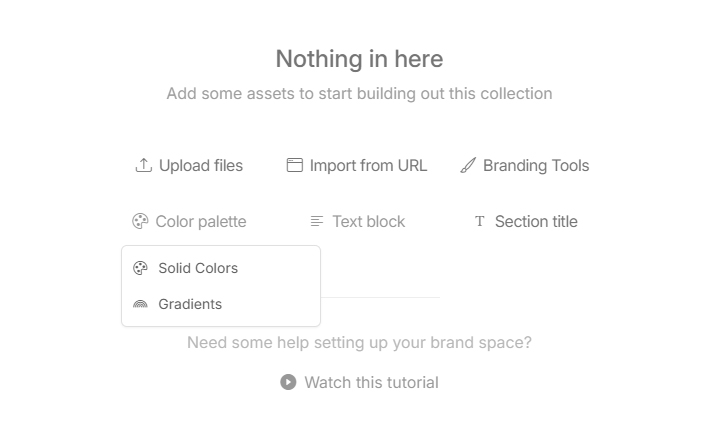
Step 1: Access the Color Palette
To add a gradient to your brand color assets:
- Navigate to the section where you want to add gradients in your brand space.
- Click on Color Palette or click on the plus icon.
- Hover over Color Palette, then select Gradient from the dropdown menu.
This creates a new gradient block in your color panel.
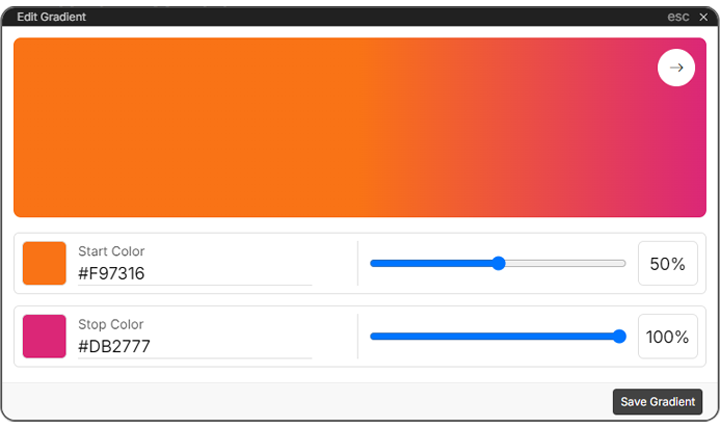
Step 2: Use the Gradient Editor
Once the gradient is added:
- Click on the gradient preview box to open the Gradient Editor.
- Use the visual interface to define your gradient by selecting two colors.
- Adjust the position of each color stop and set the gradient angle for a smooth transition.
Brandy’s gradient editor is user-friendly and perfect for quickly setting up clean, professional-looking gradients.
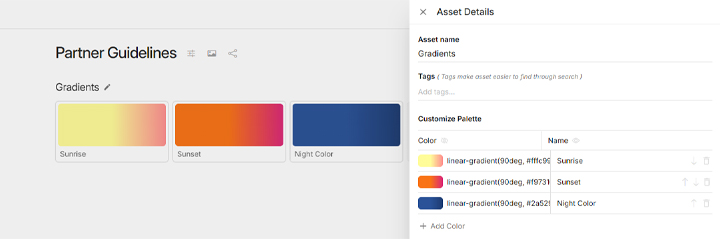
Step 3: Add Advanced Gradient Styles with CSS
If you need more control or want to use complex gradients:
- Click the edit icon next to the gradient asset name.
- Under Customize Palette, paste your custom CSS gradient code.
- This is ideal for gradients with more than two stops, radial gradients, or advanced styles.
You can define linear or radial gradients using standard CSS syntax to match your brand’s unique aesthetic.
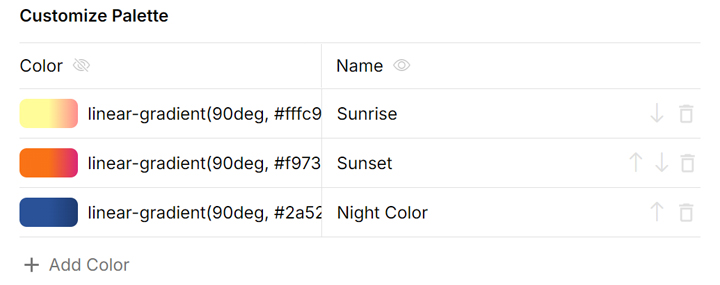
Step 4: Manage Display Settings
In the same editor panel, you can:
- Toggle gradient name visibility on or off.
- Show or hide CSS code for a cleaner visual presentation or more technical clarity.
- Click on the arrows to sort gradients manually and organize them in your preferred order.
This gives you flexibility in how gradients are shared across internal teams and external stakeholders.
Why Use Gradients in Brandy?
- Brand Depth: Gradients create a modern, vibrant feel to your brand identity.
- Visual Flexibility: Easily adjust style and tone using multiple color stops or angles.
- Collaborative Clarity: Share gradients with clear names and codes for seamless team use.
- Developer-Ready: CSS support ensures gradients translate across web and design platforms.
Common Use Cases
- Brands: Elevate brand palettes with richer visuals for web, packaging, or UI elements.
- Agencies: Provide clients with dynamic gradient options directly in their brand kits.
- Marketing Teams: Ensure consistent visual elements across campaigns and landing pages.
- Enterprises: Standardize advanced design components in central brand libraries.