

Want to connect Brandy to Claude? Brandy’s MCP (Model Context Protocol) connector lets you access your brand assets, colors, fonts, and logos directly from Claude, no more switching tabs to copy hex codes or download files. In short, once you connect Brandy to Claude, it becomes a brand assistant that can read, organize, and update your brand space on command.
What you need before you connect Brandy to Claude
- A Brandy Enterprise plan with the AI feature enabled
- Editor access or higher on the brand you want to connect
- Claude Pro, Max, Team, or Enterprise
Setup steps
Follow these steps to connect Brandy to Claude:
- First, open Claude Desktop and go to Settings
- Next, click the Connectors tab
- Then, click Add Connector and paste this URL:
https://app.brandyhq.com/mcp- After that, click Connect. You will be redirected to sign in with your Brandy account.
- Finally, once authorized, Brandy tools will appear in your Claude conversations.
That’s it. Claude can now read and act on your brand space right away.
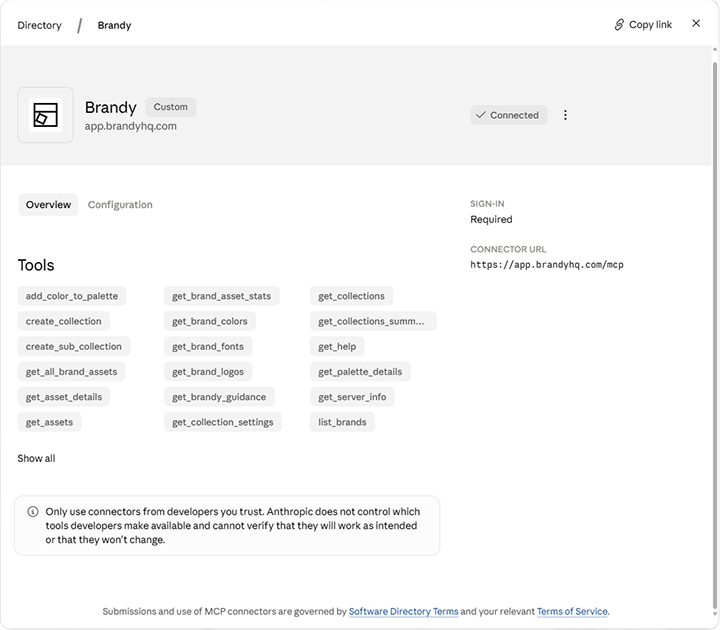
Examples: what to ask Claude after you connect
Here are some prompts to try once you’re connected. For example, you can ask Claude to explore, organize, or audit your brand space.
Get started
- “What can I do with Brandy?”
- “What brands do I have access to?”
Explore your brand
- “Give me a full breakdown of my brand: collections, asset counts, what types”
- “What fonts and colors does my brand use?”
Search and find
- “Find images with camera info”
- “Show me all the SVG assets”
Organize
- “Move the untitled assets to an Untitled sub-collection under Images”
- “Are my collections well organized? What would you improve?”
- “Create a sub-collection called Social Media inside Images”
Colors and naming
- “Add a new color
#2563EBcalled Digital Blue to my palette” - “Name my colors by role: Primary, Secondary, Accent”
Rename and clean up
- “Find any unnamed assets and help me rename them”
- “Rename my Logos collection to Brand Logos”
Reorder
- “Put Logos first, then Colors, then Fonts”
- “Set my Photography collection to sort by date”
Rate and audit
- “Rate my brand and tell me what to improve”
Preview
- “Preview my brand”
- “Generate a brand board showing just colors and logos”
As you can see, Claude can handle a wide range of tasks for your brand space this way. In other words, once you connect Brandy to Claude, you get an AI assistant that already understands your brand.
Why connect Brandy to Claude
Brand teams use Claude for content creation, campaign planning, and design reviews every day. Without this connection, that means constantly switching tabs to grab the right logo, check a hex code, or confirm brand voice guidelines. Once connected, Claude already knows your brand, so every conversation stays on-brand from the first message.
Learn more about Brandy’s features or explore our pricing plans to see which tier includes the MCP connector. For technical details on the underlying protocol, see Anthropic’s Model Context Protocol documentation.
Notes
This integration is currently in beta, so if you run into anything unexpected, let us know. We are actively improving it.